Gaussian Splats
Gaussian splat files are 3D captures created with photogrammetry or NeRF-style scanning apps. Import one to display a photorealistic, point-based 3D scene in the viewer — useful for as-built surveys, site documentation, or showing existing conditions alongside a planning scenario.
Supported formats
| Format | Extension | Notes |
|---|---|---|
| PLY Splat file | .ply | Standard PLY export produced by most Gaussian splat capture apps |
A .ply file must contain Gaussian splat properties (e.g. f_dc_0, opacity, scale_0, rot_0). A .ply exported as a plain point cloud is rejected with a message asking you to import it as a point cloud instead.
Cesium Ion-hosted Gaussian splat assets are also supported — see Cesium Ion for connecting an existing Ion asset instead of uploading a file.
Importing
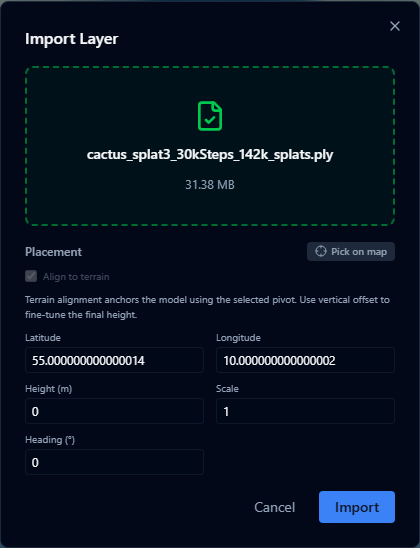
- Open the Layers panel and click +.
- Select Import file and choose your
.plyfile (max 200 MB). - The Placement panel opens — set a location, height, scale, and heading for the capture before the import can continue.
- Confirm the placement and click Import.
The file is uploaded and converted to a 3D tileset on the server. This is asynchronous — large captures may take a few minutes, and you can keep working elsewhere in the platform while it converts.
Splat files use local coordinates, so the platform needs an explicit position, scale, and heading to place the capture in the world. See Placement for the full set of placement controls.
After importing
Once conversion finishes, the layer appears on the map automatically. For details on conversion status, styling (quality, cache profile, debug bounds), split view support, and known limitations, see Gaussian Splat Layers.
Performance
- Files up to 200 MB are supported for direct import; larger captures should be hosted as a Cesium Ion asset instead
- Gaussian splat layers are rendered using Cesium's 3D Tiles streaming engine — detail loads progressively as you zoom in
- Per-splat colour or attribute styling is not available; only tileset-level style controls apply