Gaussian Splat Layers
Gaussian splat layers let you display photorealistic 3D captures directly in the platform. Splats are created with photogrammetry or NeRF-style capture tools and represent a scene as a cloud of coloured, oriented ellipsoids — the result is a dense, photo-quality 3D view without heavy mesh geometry.
Supported formats
| Format | Description |
|---|---|
.ply | Standard PLY point file exported by most Gaussian splat capture apps |
Cesium Ion-hosted Gaussian splat assets are also supported. Use Import Layer → Cesium Ion and enter your asset ID as you would for any other Ion asset.
Importing a splat file
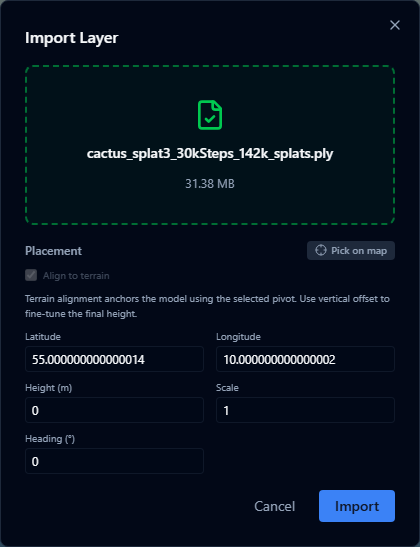
- Open the Import Layer dialog from the Layers panel.
- Select your
.plyfile — Gaussian splats are listed among the supported import formats. - The Placement panel opens immediately — you must set a position before the import can continue (see Placement below).
- Confirm the placement and click Import.
The file is uploaded and converted to a 3D tileset on the server. This is asynchronous — large captures may take a few minutes.
Placement
Splat files use local coordinates, so the platform needs to know where in the world to position the capture. Placement works the same way as for 3D models and point clouds.
| Setting | Description |
|---|---|
| Pick on map | Click a location on the globe to set latitude and longitude |
| Latitude / Longitude | Enter coordinates directly |
| Height | Absolute altitude in metres above the WGS 84 ellipsoid |
| Scale | Uniform scale factor for the whole capture |
| Heading | Rotation around the vertical axis (0–359°) |
Placement is required. The import is blocked until latitude and longitude are set. Use Pick on map if you are unsure of the exact coordinates.
Conversion status

After upload, the layer panel shows a conversion status badge:
| Status | Meaning |
|---|---|
| Queued | The file is waiting to be processed |
| Converting | Conversion is in progress |
| Ready | Conversion complete — the layer is visible on the map |
| Failed | Conversion failed. Check that the file is a valid splat export and try again |
The layer becomes visible automatically when conversion reaches Ready. You do not need to refresh the page.
Large .ply files (hundreds of megabytes) can take several minutes to convert. You can continue working in other parts of the platform while conversion runs.
Styling
Open the layer's style editor to access these controls. Note that per-splat colour or attribute styling is not available — see Limitations for details.

Quality
A screen-space-error slider ranging from 8 (sharpest, most detail loaded) to 64 (lightest, coarser detail). The default is 32.
Lower values load more tiles and produce a sharper result at the cost of frame rate. Raise the value if the capture causes performance issues on lower-powered hardware.
Cache profile
Controls how much GPU memory is reserved for the tileset:
| Profile | Description |
|---|---|
| Performance | Smaller memory budget — keeps fewer tiles resident, prioritises frame rate |
| Balanced | Default. A balance between memory use and visual quality |
| Quality | Larger memory budget — keeps more tiles resident for the sharpest result |
Changing the cache profile reloads the tileset. The Quality slider and Debug toggles apply instantly without a reload.
Debug
Two diagnostic toggles for checking placement and loading:
- Show tile bounds — draws a wireframe box around each tile. Useful for confirming the capture is positioned and scaled correctly.
- Show content bounds — draws bounding volumes around the individual splat content within each tile.
Turn these off when you are done — they add visual clutter and a small performance cost.
Split view
Gaussian splat layers support split view (swipe compare). You can place a splat layer in Scenario A and compare it against Scenario B using the swipe handle, just like other 3D tileset types.
Publishing to the dataset catalog
Splat layers can be published to the Public Dataset Catalog, making them available for other projects in your organisation or the wider community to add without re-uploading.
Limitations
Per-splat colour and attribute styling are not available. Cesium does not currently expose feature-level controls for Gaussian splat content. Only tileset-level settings apply: Quality, Cache profile, Debug bounds, and the standard layer visibility and opacity slider. There is no colour-by-attribute option and clicking individual splats does not open an attribute inspector.
If you need feature-level inspection or colour mapping, consider a point cloud layer from a LAS/LAZ survey instead.