Comments
Comments let team members leave location-anchored feedback directly on the map. Each comment is pinned to a geographic coordinate and can be attached to the current scenario or made global across the project.
Placing a comment
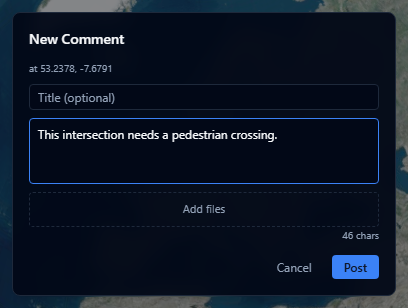
- Open the Comments panel (left toolbar → comments icon).
- Click + New Comment.
- Click a location on the map to place the comment pin.
- Choose whether the comment is attached to the current scenario or is global.
- Write your comment using the rich text editor. You can use @mentions to notify team members.
- Optionally click Add files to attach supporting images or PDFs.
- Click Submit.
Attachments
Comments and replies can include up to 5 attachments. Supported file types are JPEG, PNG, WebP, GIF, and PDF, with a maximum size of 10 MB per file.
Image attachments appear as thumbnails and open in an image viewer. PDFs appear as file chips and open in a new tab through a signed link.
Viewing comments
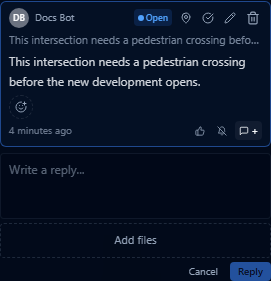
Comment pins appear on the map as colored markers. The color is determined by the author's job title. Click a pin to open the thread. Rows with attachments show an attachment count so you can spot comments with supporting files quickly.
Filtering and sorting

Use the filter controls at the top of the Comments panel to:
- Filter by status (open, resolved)
- Filter by job title
- Show comments for the current scenario or all comments
- Sort by newest, oldest, or most replies
Voting and reactions
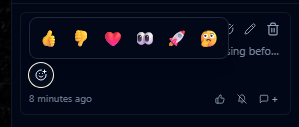
Upvote comments you agree with using the thumbs-up button.
You can also add lightweight reactions to a comment, including thumbs up, thumbs down, heart, eyes, rocket, and thinking reactions. Reactions are useful when a full reply is not needed.
Replies and following
Open a thread to reply to a comment. If you follow a thread, new replies create notifications so you can return to the discussion.
Resolving a comment
Mark a comment as resolved when the issue has been addressed. Resolved comments are hidden by default but can be shown using the status filter.