Signing In & Signing Up
Access the AugmentCity GeoPlanning Platform by creating an account or signing in with your existing credentials.
Signing in
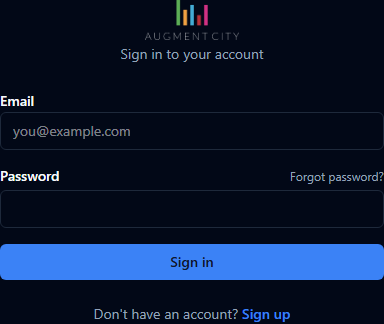
- Go to the platform login page.
- Enter your email address and password (minimum 6 characters).
- Click Sign In.
You are taken to your project dashboard.
If your organisation sent you an invitation link, follow that link to sign up — your email will be prefilled automatically. Organisation invitations still require you to accept the invite before you become a member.
Creating an account
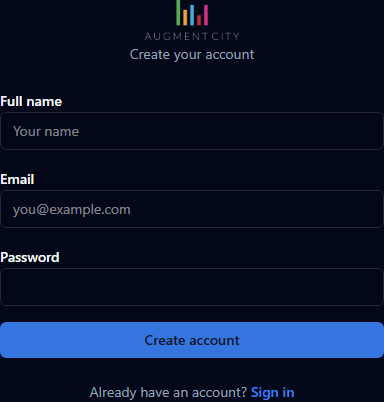
- Go to the sign-up page (or click Create an account on the login screen).
- Enter your full name (minimum 2 characters), email address, and a password (minimum 8 characters).
- Click Create Account.
- If email confirmation is required, a confirmation screen appears — check your inbox and click the link to verify your address.
Once verified, you are taken to your project dashboard.
Resetting a forgotten password

- On the login page, click Forgot password?
- Enter your email address and click Send Reset Link.
- Check your inbox for a password reset email and click the link inside.
- Enter your new password on the reset screen and confirm.
You can now sign in with the new password.
Password reset links expire after a short period. If the link has expired, return to the Forgot password? page and request a new one.
Setting a new password after clicking a reset link
When you follow a reset link from your email, you are taken directly to the reset password screen. Enter your new password and click Save. You are then signed in automatically.