Analytics Panel
The Analytics panel is a configurable dashboard that sits alongside the 3D map. Use it to visualise statistics from your project layers as charts, tables, and summary metrics — all updating dynamically as you interact with the map.
Open it by clicking Analytics in the toolbar (chart/dashboard icon).
Widgets
The analytics panel is made up of widgets — individual chart or table cards that each display a specific analysis. You can add as many widgets as you need and arrange them freely on the dashboard.
Adding a widget
- Click + Add widget in the Analytics panel header.
- Select a chart type (see chart types below).
- Choose a data source — either a layer from your project, or an external live source.
- Select the category field (the attribute to group by, e.g. building type, land use).
- Optionally select a value field (for sum, average, min, or max aggregations).
- Choose an aggregation (count, sum, avg, min, max).
- A live preview appears as you configure the widget.
- Click Add.
Arranging widgets
- Move — drag the widget by its title bar handle
- Resize — drag the resize handle at the bottom-right corner
- Widgets snap to a grid and compact vertically automatically
Removing widgets
Click the × on a widget card to remove it from the panel.
Clearing all widgets
Click the trash icon in the panel header. A confirmation prompt appears — click again within 3 seconds to confirm. All widgets are removed.
Chart types
| Type | Best for |
|---|---|
| Bar | Comparing values across categories |
| Line | Trends over ordered categories (e.g. time, distance) |
| Area | Similar to line but fills the area below — good for cumulative values |
| Pie | Proportional breakdown of a small number of categories |
| Donut | Same as pie with a centre cutout |
| Scatter | Relationship between two numeric fields |
| Stat | Summary statistics — count, min, max, average, sum for a field |
| Table | Full attribute table view with all columns |
X-Y charts from dataset fields
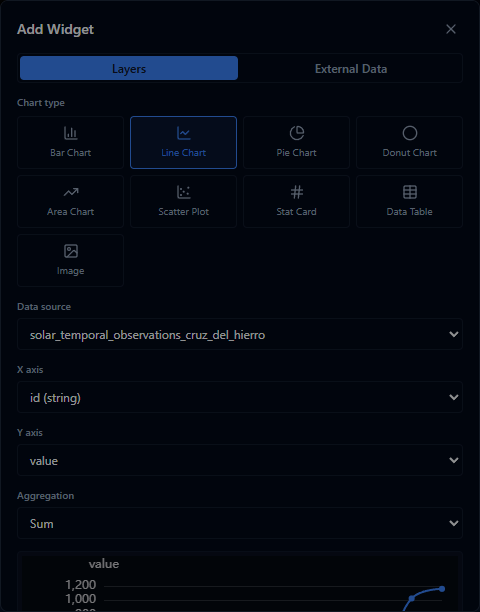
Line, Area, and Scatter widgets can plot one dataset field against another. In the Add Widget dialog, these charts show X axis and Y axis selectors instead of a single category field.
- X axis chooses the value that controls each point's position along the horizontal axis. Use a timestamp, date, distance, floor area, or other ordered field.
- Y axis chooses the numeric value to measure. Use fields such as height, cost, population, emissions, risk score, capacity, or energy use.
Timestamp and date fields work well on the X axis for time series. The Y axis must be numeric so the chart can place values correctly.
Use X-Y charts when you need to:
- Track a value over time, such as sensor readings or construction stages
- Compare two numeric attributes, such as floor area and energy demand
- Find outliers or clusters in a Scatter Plot
Data sources
Project layers
Select any layer that has an attribute schema (GeoJSON, shapefile, ArcGIS Feature Server, and other vector layers). The analysis runs on the features currently loaded in the layer, including any active filters.
External sources
Select External to analyse live data from sources outside your project. External sources are fetched for the area currently visible in the viewport — the data updates when you move the map.
Available external sources depend on your AugmentCity installation. Common examples include public building registers, cadastral data, and statistical datasets.
Search
Type in the search bar to filter widgets and highlight matching values on the map. For example, searching for a category name (e.g. "residential") will:
- Show only widgets that contain that value
- Highlight the matching features on the 3D globe if exactly one category matches
Exporting
Click the download icon in the panel header to export the current analytics panel as a PDF report. The export:
- Includes all widgets in their current layout order
- Adds the project name, active scenario name, and a timestamp
- Is a multi-page PDF if there are more widgets than fit on one page
The PDF export is disabled when a search filter is active. Clear the search first.
Saving in scenarios
The analytics panel layout — which widgets are present, their configurations, and whether the panel is open — is saved in scenario snapshots. Switching scenarios restores the full analytics state.
Analytics in public shares
Shared links can show the analytics widgets saved with the scenario. Recipients see the charts and tables in read-only mode, so they can review the evidence behind a proposal without changing the dashboard.