Organisations
An organisation is the top-level container for all your projects and team members. Your AugmentCity account always belongs to at least one organisation, and every project lives inside an organisation.
Typical setups:
- A single organisation for the whole agency or company
- Separate organisations for distinct teams or clients with no shared access
Creating an organisation
If you don't belong to any organisation yet, AugmentCity prompts you to create one at first login:
- Enter an organisation name (2–80 characters).
- Optionally add a description.
- Click Create.
A URL-safe slug is generated automatically from the name (e.g., "City Planning Dept" → city-planning-dept). The slug is permanent and cannot be changed after creation.
Switching organisations
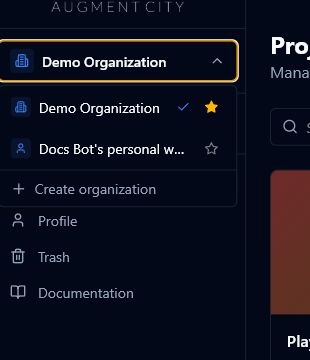
If your account belongs to more than one organisation, click the organisation name in the top-left corner of the dashboard to open the org switcher. Select the organisation you want to work in.
Organisation roles
Organisation roles control access at the top level — they cascade down to projects automatically.
| Role | Description |
|---|---|
| Org Owner | Created the organisation. Can do everything, including deleting the organisation. |
| Org Admin | Can create projects, invite org members, and manage member roles (below admin level). |
| Org Member | Can view every project in the organisation. Needs a project role override to contribute or edit. |
How org roles affect project access
| Org role | Effective project role |
|---|---|
| Org Owner | Owner on every project in the org |
| Org Admin | Editor on every project in the org |
| Org Member | Viewer on every project in the org |
This means Org Owners, Admins, and Members can open organisation projects without being listed in each project's own member list. A project-specific role still wins when one is set, so an Org Member can be promoted to Editor on one project without changing their organisation role.
People invited only to a project are Project Guests. They can open the specific projects they were invited to, but they do not receive an organisation role or access to every project in the organisation.
Organisation settings
Open Settings from the organisation menu (the building icon). The settings page has three sections:
General
- Name — edit the organisation display name (Org Owner only).
- Description — optional description visible to all members.
- Slug — shown for reference only; cannot be changed.
Click Save to apply changes.
Members
See Organisation Members for full details on inviting and managing members.
Danger zone
Org Owners can permanently delete the organisation from this section. You must type DELETE to confirm before the button becomes active.
An organisation cannot be deleted while it still contains projects. Delete or move the projects first; organisation deletion does not silently cascade-delete all project data.