Your Profile
Your profile page lets you manage your display name, job title, avatar, password, and notification preferences. Access it from the project dashboard by clicking your name or avatar in the top navigation.
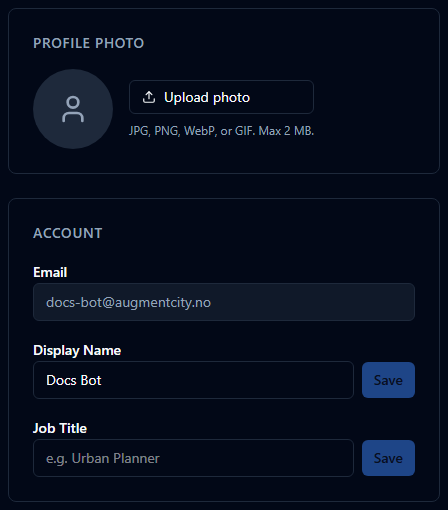
Updating your avatar
Your avatar appears on comment pins across the map and in the member lists.
- Open your profile page.
- Click on the avatar area, or drag and drop an image file onto it.
- Select a photo from your device.
- The image uploads and appears immediately.
To remove your current photo, click Remove.
Updating account information
Display name
Your display name appears in comments, @mentions, and the member list.
- Click the Display name field.
- Type your updated name.
- Click Save.
Job title
Your job title is used to colour-code your comment pins on the map, making it easy for teammates to identify contributions by role at a glance.
- Click the Job title field.
- Enter or update your job title.
- Click Save.
Email address
Your email address is shown on the profile page but cannot be changed. It is the address used to sign in and receive notifications.
Notification preferences
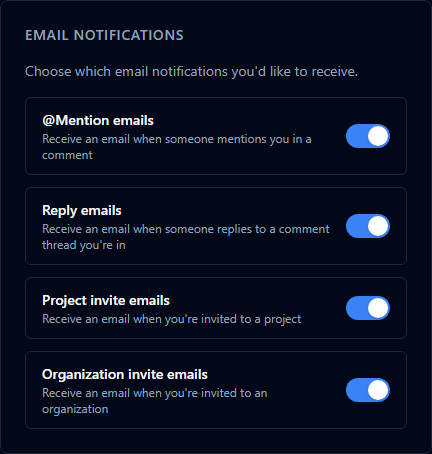
The Notification Preferences section lets you control which activity in the platform triggers email or in-app notifications. Review and update these settings from your profile page to suit your workflow.
Changing your password

- On your profile page, click Change Password.
- Enter and confirm your new password.
- Click Save.
You do not need to enter your current password to set a new one. If you're signed out and can't sign back in, use the Forgot password? link on the login page instead.
API Keys
Your profile page includes a personal API Keys section. Personal API keys apply only to your own account and override any organisation-level keys for your session. See API Keys for full details on what each key does and how to manage them.