Presenter and Follower Modes
Presenter and Follower modes let project owners and editors guide other users through the map in real time. Use them for stakeholder walkthroughs, team reviews, or any session where everyone needs to look at the same thing at the same time.
Starting a presentation

Only owners and editors can start a presentation.
- Open the Online panel (left toolbar → users icon).
- Click Start Presenting at the bottom of the panel.
- Your name now shows a blue Presenter badge, visible to all other users in the project.
- Other users see a Follow button appear next to your name.
To stop presenting, click Stop Presenting at the bottom of the Online panel.
Broadcast tools
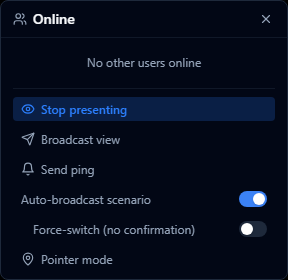
While presenting, a set of broadcast controls appears in the Online panel.
| Action | What it does |
|---|---|
| Broadcast View | Sends your current camera position to all users. They receive a notification and can click it to fly to your view. |
| Send Ping | Sends an attention ping to all users, with an optional short message. |
| Broadcast Scenario | Shares the current scenario with all users. They receive a notification and can click it to switch. |
| Auto-broadcast Scenario | Automatically broadcasts every scenario switch you make for the rest of the session. |
| Force scenario switch | When enabled, recipients' scenarios switch immediately — no prompt is shown. |
| Pointer Mode | Click anywhere on the map to place a temporary pin visible to all users. The pin clears automatically after 15 seconds. |
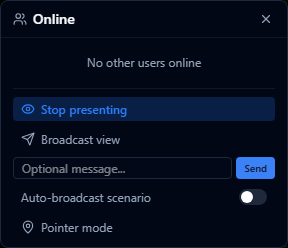
Use Pointer Mode to draw attention to a specific building, boundary, or site during a live walkthrough. It is more precise than describing a location verbally.
Force scenario switch overrides what recipients are currently viewing. Use it only when it is important that everyone sees the same data at the same moment — for example, when comparing two scenarios side by side in a meeting.
Following a presenter
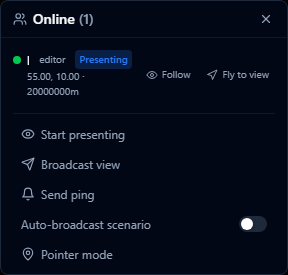
Any user can follow an active presenter.
- Open the Online panel.
- Find the user with the blue Presenter badge.
- Click Follow next to their name — your camera will automatically track their movements.
- Click Follow again at any time to stop following and regain control of your camera.
Following also stops automatically if:
- The presenter clicks Stop Presenting
- The presenter leaves the project
You can still scroll and zoom freely while following. Your camera snaps back to the presenter's position the next time they broadcast a view.
Scenario following (contributors and viewers)
Contributors and viewers see a Follow scenario toggle in the Online panel. When this toggle is on, your active scenario switches automatically whenever a presenter broadcasts a scenario change.
Turn the toggle off at any time to stop following scenario changes and browse scenarios independently.
Notifications

When a presenter broadcasts an action, all other users see a toast notification in the corner of the screen.
| Event | Notification |
|---|---|
| View broadcast | "User shared a view" — click to fly to that position. |
| Scenario broadcast | "User switched to Scenario X" — click to switch to that scenario. |
| Attention ping | "User pinged you" — displays any optional message the presenter included. |
Notifications dismiss automatically after a few seconds. If you miss one, the presenter can send it again.