Organisation Members
Organisation members are managed separately from project members. Adding someone to an organisation gives them baseline viewer access to every project in that organisation. Use project roles when someone needs elevated access to one project, or invite a person directly to a project when they should be a Project Guest rather than an organisation member.
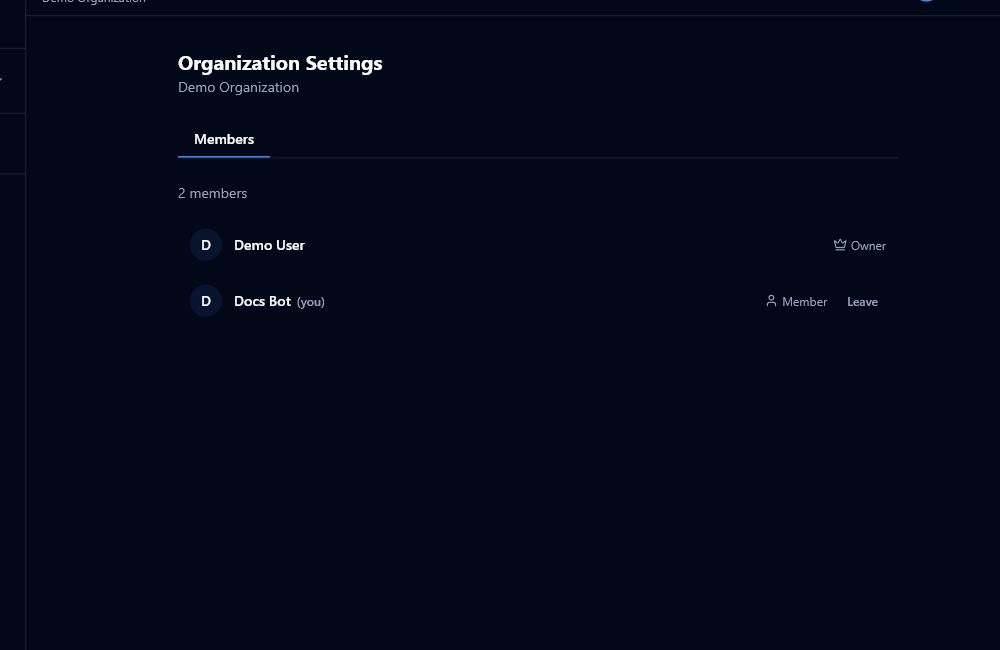
Inviting a member
- Go to Organisation Settings → Members.
- Click Invite Member.
- Enter the person's email address.
- Select a role:
- Org Admin — can create projects and manage Org Member roles (Org Owner only can assign this)
- Org Member — standard membership with viewer access to all organisation projects
- Click Invite.
The invitation expires after 7 days. The recipient must accept the invitation before they are added to the organisation. They can accept from the invite link, from the organisation setup screen, or from a pending organisation invite notification.
Recipients can also decline a pending organisation invite. Declining removes the pending invitation and notifies the inviter.
You cannot invite someone as Org Owner. Ownership cannot be transferred.
Managing members
Each member row in Organisation Settings → Members shows:
- Display name and job title (if set in their profile)
- Current role (with an icon: crown for owner, shield for admin, person for member)
- A role dropdown (for members whose role you can change)
- A remove button
Use the row checkboxes to select multiple members. The batch toolbar lets you change the selected members' role or remove them together. Batch actions are best-effort: valid rows are applied, and rows that cannot be changed are reported separately.
Changing a role
- Org Owners can change any member's role to Org Admin or Org Member.
- Org Admins can only change Org Member rows — they cannot modify other admins or owners.
- You cannot demote yourself.
Removing a member
Click the remove icon and confirm. The member loses access to the organisation immediately. Removing someone from an organisation also removes their explicit project memberships in that organisation. Protected project owner rows cannot be removed this way; transfer ownership first, then remove the person.
You cannot remove the last Org Owner. At least one owner must always remain.
Cancelling a pending invite
In the Pending section, click the cancel icon next to an invite to revoke it.
You can also select multiple pending invites and use Resend selected or Cancel selected. Pending invite roles cannot be batch-edited; cancel and reinvite if the role is wrong.