Trash
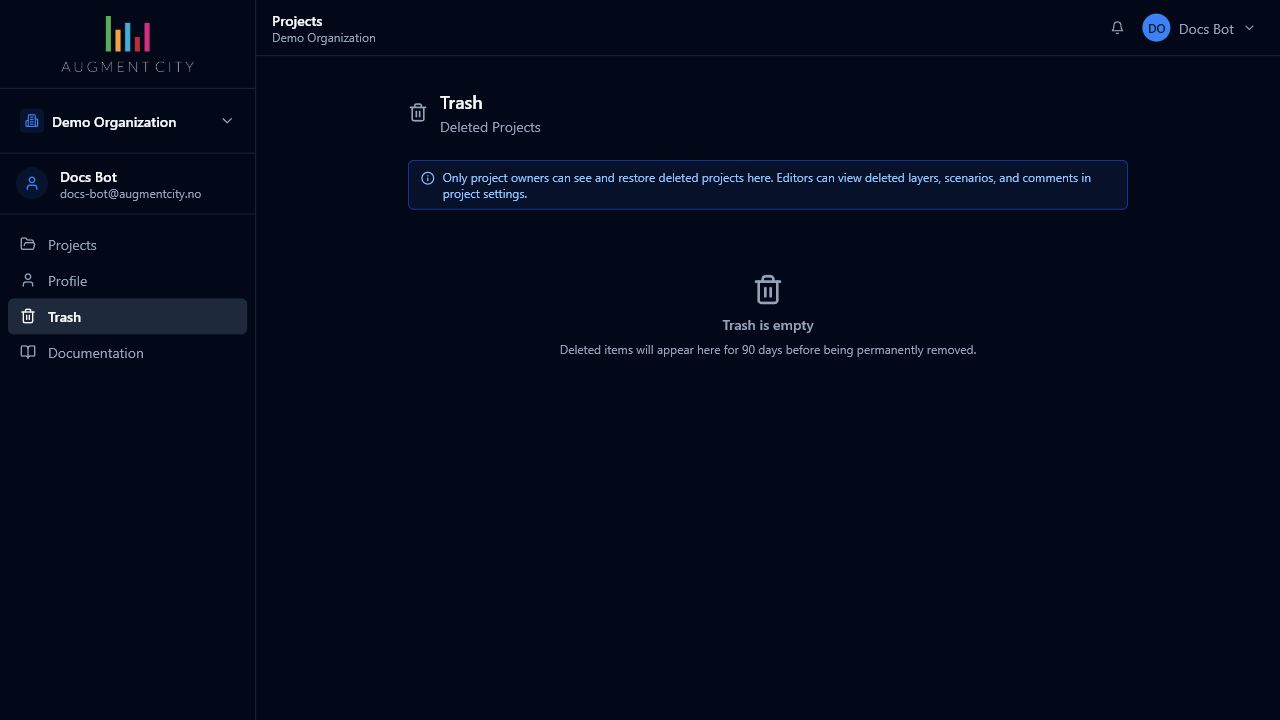
When you delete a project, layer, scenario, or comment, it is moved to Trash rather than permanently removed. Items stay in Trash for 90 days, giving you time to recover anything deleted by mistake.
Deleting a project
Only the project Owner can delete a project.
- On the Dashboard, hover over the project card and click the ⋯ icon.
- Select Delete.
- Read the confirmation dialog, then type DELETE (all caps) in the confirmation field.
- Click Delete.
The project disappears from the Dashboard and moves to Trash. All of its layers, scenarios, and comments are moved to Trash at the same time.
The delete dialog confirms: "This project and all its layers, scenarios, and comments will be moved to Trash. Items in Trash are permanently deleted after 90 days."
Viewing deleted projects
Deleted projects appear in Trash, which you can access from the left sidebar of the Dashboard.
Only project owners can see and restore deleted projects in Trash. If you are an Editor or Contributor and cannot find a project, ask the project owner to check Trash and restore it.
Each deleted project row shows:
- The project name
- The date it was deleted and who deleted it
- How many days remain before permanent deletion
Restoring a project
- Open Trash from the Dashboard sidebar.
- Find the project you want to recover.
- Click Restore.
The project returns to the Dashboard immediately. All layers, scenarios, and comments that were moved to Trash when the project was deleted are also restored automatically.
Items that were deleted individually before the project was deleted are not restored with the project. For example, if you deleted a layer two weeks before deleting the project, that layer must be restored separately from Project Settings → Trash.
Viewing deleted layers, scenarios, and comments
Each project has its own Trash view for layers, scenarios, and comments deleted within that project.
- Open the project in the viewer.
- Go to Project Settings (gear icon or ⋯ menu on the Dashboard).
- Click the Trash tab.
The Trash tab is divided into three sections:
| Section | What it shows |
|---|---|
| Deleted Layers | Layers removed from this project |
| Deleted Scenarios | Scenarios that have been deleted |
| Deleted Comments | Comments deleted by any team member |
Owners and Editors can access this tab. Click Restore next to any item to return it to the project.
Permanent deletion
Items that have been in Trash for more than 90 days are automatically and permanently removed. This cannot be undone.
Each item in Trash shows a countdown — for example, "14 days remaining" — so you always know how much time is left to act.
When a project is permanently deleted, the storage files attached to its layers (uploaded GeoJSON, 3D models, point clouds, and so on) are also permanently removed.
If a deadline is approaching for an important project, restore it before the 90-day window closes, even if you do not intend to work on it immediately. You can always delete it again later.