Split View (Swipe Compare)
Split View lets you compare two scenarios side by side on the same 3D globe using a draggable divider. Drag the slider left or right to reveal more of either scenario — useful for showing the visual difference between a baseline and a proposed plan in one continuous view.
Split View is a visual, on-globe comparison. For a structured summary of what changed between two scenarios (layer additions, visibility changes, style differences), use Scenario Compare instead.
Starting a comparison
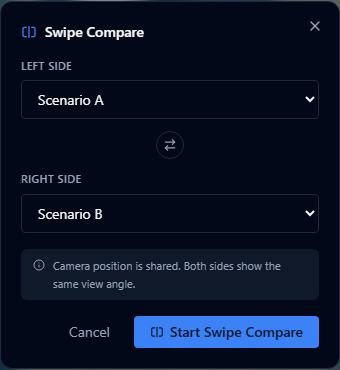
- Open the Scenarios panel (left toolbar → scenarios icon).
- Click Compare to open the Swipe Compare dialog.
- Use the Left side dropdown to select the first scenario.
- Use the Right side dropdown to select the second scenario.
- Click Start Swipe Compare.
The globe splits with a vertical divider. The left scenario appears on the left, the right scenario on the right.
Some layer renderers cannot be masked to one side of the divider. If a comparison includes those layers, AugmentCity shows a warning so you know the visual result is not a perfect left/right layer split. See Layer support for details.
Position the camera to frame the area of interest before starting the comparison — the view does not change when Split View activates.
Layer support
Split View uses CesiumJS split masking where the layer renderer supports it. Supported layers are clipped cleanly to the left or right side of the divider. Unsupported layers cannot be duplicated and masked in the same way, so AugmentCity warns you and may show the active scenario's copy across both sides of the comparison.
| Layer type | Split View behavior |
|---|---|
| WMS, WMTS, XYZ, raster imagery | Supported. Each side can show a different imagery configuration. |
| ArcGIS MapServer imagery | Supported. MapServer layers can be masked to the left or right side. |
| Cesium 3D Tiles and Google 3D Tiles | Supported. Tilesets can be split like other Cesium 3D Tiles layers. |
| Point clouds and Gaussian splats | Supported. Converted 3D Tiles point-cloud and splat layers can be masked by the divider. |
| GLB/GLTF models and IFC models | Supported. Model layers can be masked to one side of the comparison. |
| GeoJSON point layers | Supported. Point markers, 3D model visualizations (trees and GLB models), and 3D bar charts can all be split. |
| GeoJSON polygons and lines | Not supported. These layers cannot be masked to one side of the swipe divider. |
| KML and CZML | Not supported. These layers cannot be masked to one side of the swipe divider. |
| ArcGIS Feature Server layers | Not supported. Use an ArcGIS MapServer imagery layer when you need swipe comparison behavior. |
| I3S Scene Layers | Not supported. I3S layers are scenario-aware, but they cannot currently be clipped independently per side. |
On 3D bar chart layers the columns themselves are clipped to their side of the divider, but bar outlines are hidden and value labels stay visible on both sides while the comparison is active. Very large bar chart layers (over 5,000 bars) are left unclipped for performance reasons and still appear on both sides.
For the clearest comparison, keep unsupported contextual layers visible in both scenarios and use Split View for proposal layers that are fully supported.
Using the slider
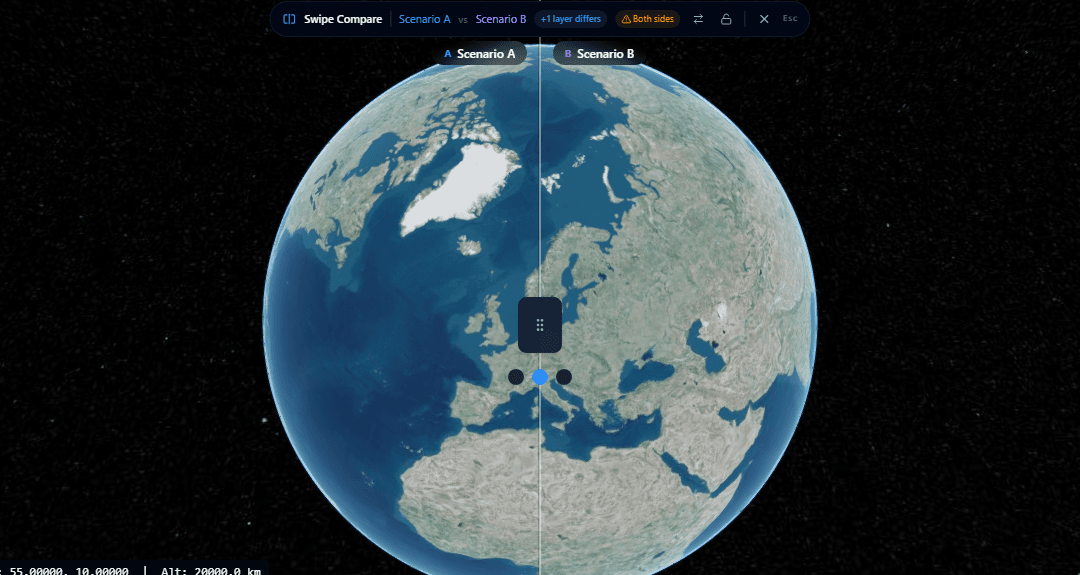
Drag the divider line left or right to control how much of each scenario is visible. The divider can be moved anywhere between 5% and 95% of the viewer width.
Both sides share the same camera position — panning and zooming moves both scenarios together, so the comparison stays spatially aligned at all times.
The comparison toolbar

While Split View is active, a toolbar appears at the top of the viewer showing the names of both scenarios.
| Control | What it does |
|---|---|
| Left scenario name (sky blue) | Shows which scenario is on the left side |
| Right scenario name (violet) | Shows which scenario is on the right side |
| Swap | Swaps the left and right scenarios without restarting the comparison |
| Lock slider | Locks the divider in place so it cannot be dragged accidentally — useful when presenting |
| Exit | Closes Split View and returns to single-scenario view |
Labels also appear at the top corners of the globe (left-side name top-left, right-side name top-right) so the comparison remains readable even when the toolbar is scrolled out of view.
Split View in Presenter mode
When a presenter starts a Split View comparison with Auto-broadcast Scenario enabled, all other users in the project receive a toast notification:
"[Name] is comparing 'Baseline' vs 'Phase 2'"
The notification includes two actions:
- Follow — enters the follower into the same Split View comparison immediately.
- Dismiss — ignores the notification; the follower stays in their current view.
While following a split comparison
Once a follower clicks Follow:
- A Following [Name] pill appears below the toolbar.
- The presenter's slider position is mirrored in real time (updates are broadcast every 250 ms).
- Click the X on the pill to stop following at any time and take independent control of the slider.
When the presenter exits Split View, followers see a second notification:
"[Name] ended the comparison"
This notification offers Exit split (leave Split View) or Dismiss (stay in Split View independently). Followers are never removed from Split View automatically — they must act on the notification or exit manually.
Followers must click Follow on the toast to enter the comparison — Split View is never entered automatically. This avoids disrupting users who are working in a different part of the project.
Late joiners can still enter a presenter's active Split View comparison. The current comparison state (which scenarios, current slider position) is included in the project presence data and shown to anyone who joins mid-session.
Split View and Presentation Mode (F5 fullscreen) are mutually exclusive. Entering one will exit the other.
Split View in share links
You can create a share link that opens directly in Split View.
Creating a comparison share link
- Open the Share dialog (toolbar overflow → Share).
- Set the primary scenario using the Scenario dropdown.
- A Compare With dropdown appears — select the second scenario.
- Complete the rest of the share link settings (label, password, expiry) as normal.
- Click Create link.
The share link opens directly in Split View with both scenarios loaded and the divider at the centre (50/50).
What public viewers see
Public viewers opening a comparison share link get the full Split View experience:
- The draggable slider works the same way as for authenticated users.
- The comparison toolbar shows both scenario names in sky blue and violet.
- Swap and Exit buttons are available — viewers can exit to a single-scenario view if they prefer.
Comparison share links are shown in the share list with a split icon and colour-coded scenario names so you can distinguish them from single-scenario links at a glance.
The slider position is not saved in the share link. Every viewer starts at the 50/50 centre position.
Split View in embeds
Embed links that include a comparison show Split View with the draggable slider enabled. Embeds have a fixed, minimal layout:
- Static scenario name labels appear at the top-left (sky blue) and top-right (violet) corners.
- There is no toolbar — no Swap button, no Exit button.
- The comparison is the entire embed; there is no way to return to single-scenario view from within the embed.
This keeps embed iframes clean and focused on the comparison itself.
Limitations
- Two scenarios only — Split View compares exactly two scenarios. Multi-way comparison is not supported.
- Slider position not persisted — share links and embeds always start at 50/50 regardless of where the slider was when the link was created.
- Mutually exclusive with Presentation Mode — Split View and the F5 fullscreen Presentation Mode cannot be active at the same time.
- Embed comparison is fixed — in an embed, viewers cannot swap sides or exit to single-scenario view.
- Follow is opt-in — followers must manually click Follow on the presenter's toast notification; Split View is never entered automatically.
- Not every layer type can be masked — I3S, ArcGIS Feature Server, KML, CZML, and GeoJSON polygon/line layers cannot currently be split into separate left/right copies.