CZML Streams
CZML streams display live-updating entities on the map — ships, aircraft, vehicles, or any moving objects broadcasting their position in real time.
Connecting a stream
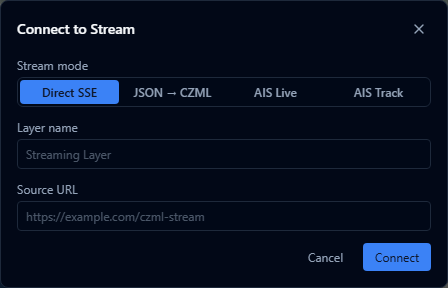
- Open the Layers panel.
- Click the radio icon in the header to open Connect to Stream.
- Choose a stream mode — Direct SSE, JSON → CZML, AIS Live, or AIS Track — and enter a layer name and the source URL.
- Click Connect. The stream appears as a new layer with live-updating entities.
Connecting through this dialog is what unlocks the full style editor described below. If you import a .czml file directly from the Add layer button instead, the layer is treated as historical playback data and only shows a simpler trail/path editor — not the colour, icon, scale, and interpolation controls covered on this page.
Styling
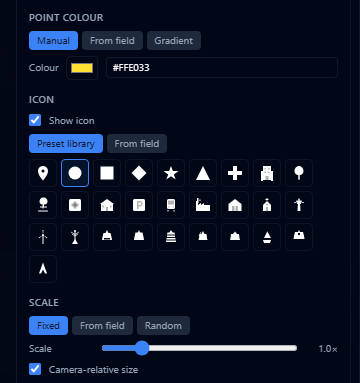
Expand the CZML stream layer to access style options. All style settings can be driven by real-time observed attributes from the stream data.
Colour
| Mode | Description |
|---|---|
| Manual | Single colour for all entities |
| From dataset | Map a real-time attribute to colours |
| Gradient | Map a numeric attribute to a colour ramp |
Icons
- Enable/disable toggle
- Preset — choose from the built-in icon grid
- From dataset — map an attribute to different icons
Scale
- Fixed / From dataset / Random (same options as point markers)
- Camera-relative scaling toggle
Labels
- Enable/disable toggle
- Field — which real-time attribute to display
- Font size
- Show background toggle — adds a background behind label text for readability
Interpolation
Controls how entity positions are smoothed between data updates.
| Setting | Description |
|---|---|
| Enable/disable | Toggle position interpolation |
| Algorithm | Linear / Hermite / Lagrange |
| Max samples | Number of position samples to keep (50–500) |
| Extrapolation | Continue predicting position after data stops, with configurable duration |
| Show heading | Display entity heading direction, with a heading source field selector |
Trails
Show the historical path of moving entities.
| Mode | Description |
|---|---|
| None | No trail shown |
| Fading | Trail fades out over a configurable duration (5–600 seconds) |
| Full | Complete path history since the stream started |
AIS Reset
For AIS ship tracking layers, a Reset to AIS defaults button restores the default ship-appropriate styling.