Content Catalog
The Catalog lets teams reuse prepared datasets, 3D layers, and individual 3D assets across projects. Public content can be shared with the AugmentCity community. Organization content stays visible only to members of its organization.
Opening the catalog
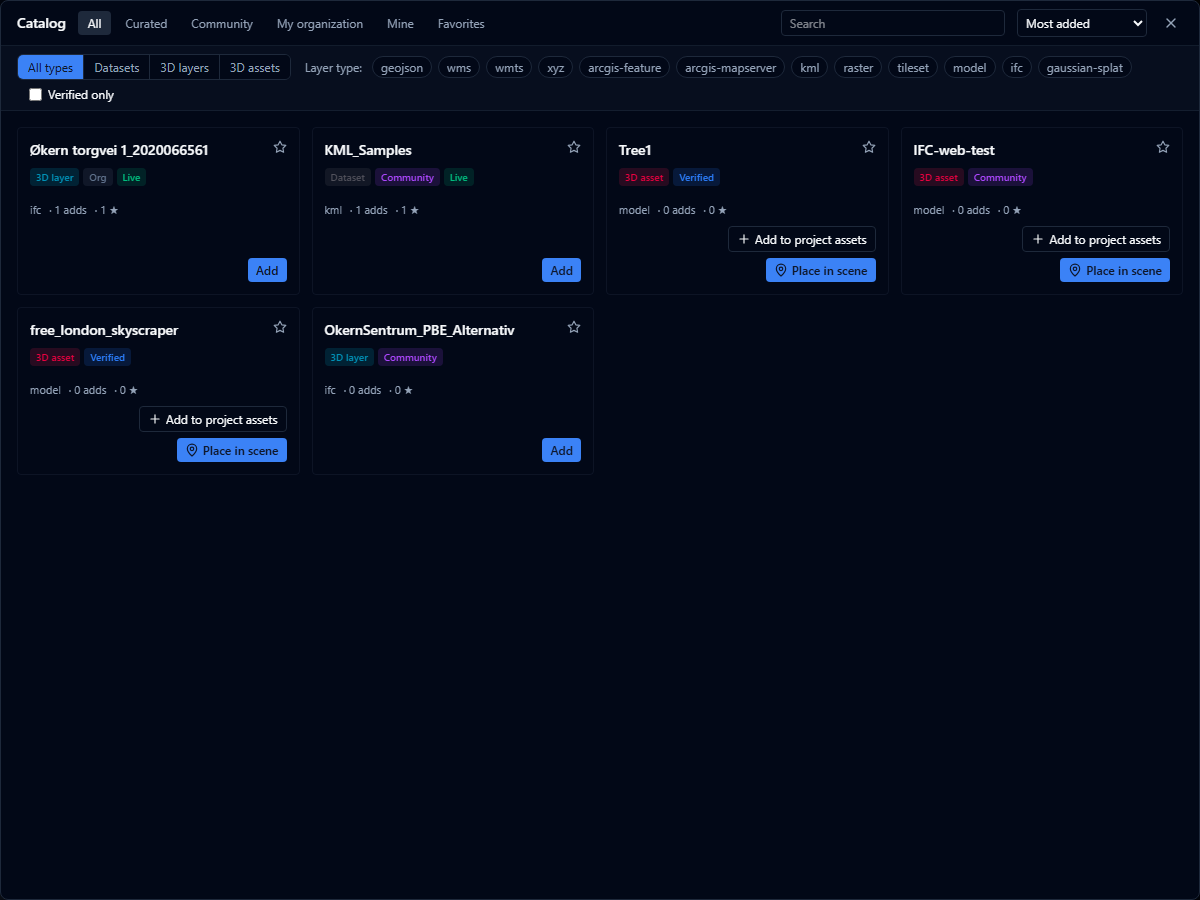
- Open the Layers panel.
- Click Browse catalog beside Add layer.
- Choose an audience tab and, when needed, a content-type filter.
| Tab | What it shows |
|---|---|
| All | Everything you have access to — curated and community content, your organizations' content, and your own published content |
| Curated | Verified public content selected by AugmentCity |
| Community | Other public content |
| My organization | Organization-only content available to your organization |
| Mine | Content you published, including drafts and delisted items |
| Favorites | Content you starred |
All opens by default. My organization only appears if you belong to an organization. Drafts and delisted content only appear under Mine — they never show up on All or the other shared tabs.

Use All types, Datasets, 3D layers, and 3D assets to narrow the results. You can also search by keyword, filter layer types, and sort by most added, most favorited, recent, or verified first.
Provenance badges

Every result card shows small badges next to its content-type icon so you can tell where it came from at a glance:
| Badge | Meaning |
|---|---|
| Verified | Curated by AugmentCity |
| Community | Public content that has not been verified |
| Org | Shared within an organization |
| Mine | Published by you |
| Live | Follows the publisher's latest version |
| Delisted | No longer discoverable, shown only on Mine |
These badges appear on every tab, not only on All.
Searching the catalog
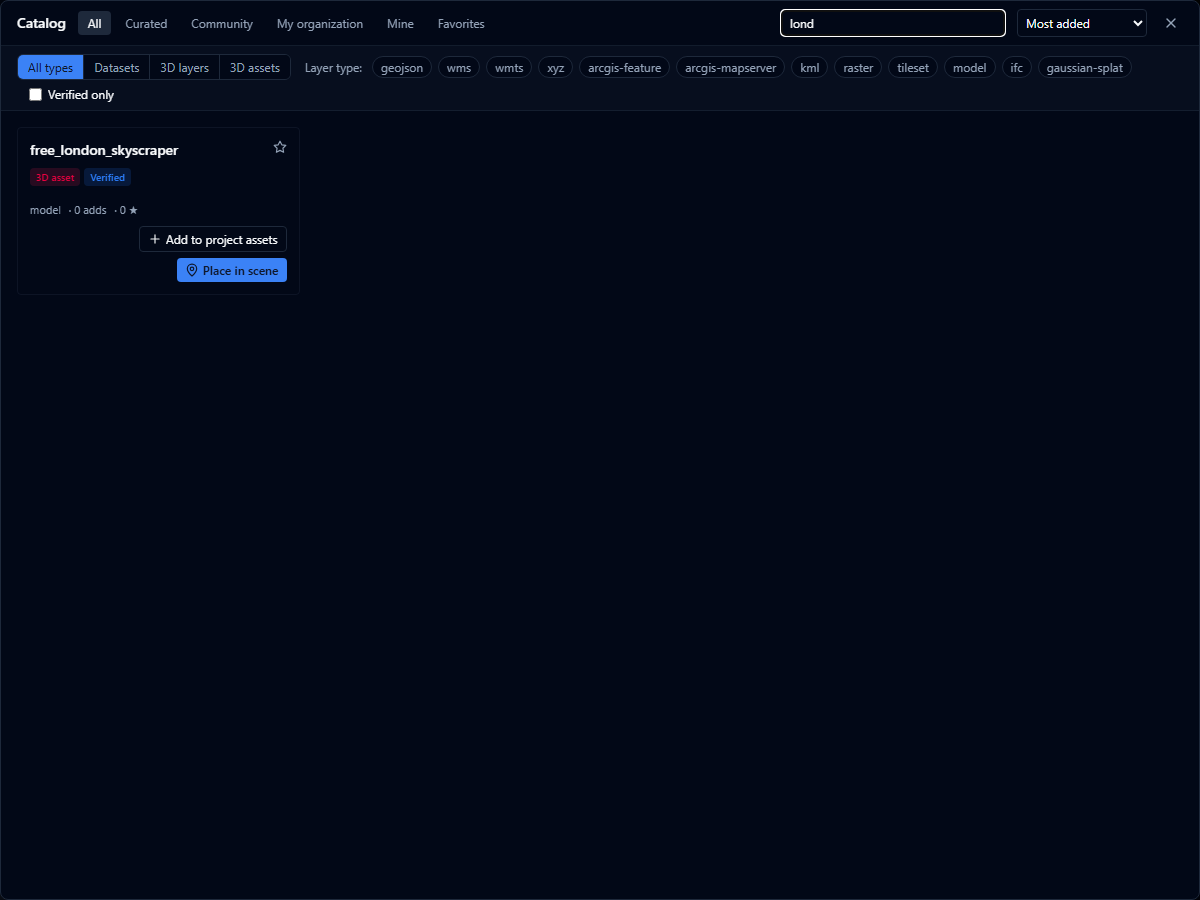
The search box matches partial words, not just whole terms — searching lond finds a dataset titled free_london_skyscraper. Search looks at the title, description, and tags of each item. If you type more than one word, every word must appear somewhere in the item for it to match.
Using catalog content
The available action depends on the content type.

| Content type | Actions |
|---|---|
| Dataset | Add, optionally copy the publisher's style, then Add to project |
| 3D layer | Add to create a normal project layer |
| 3D asset | Add to project assets or Place in scene |
When choosing a model inside the 3D model style editor, click Choose from catalog and then Use as model. The selected asset is added to the project and appears under Models in this project.
Anyone with access to the project can open Browse catalog and search it, including viewers. Adding catalog content to the project requires permission to add layers — without it, the add actions are hidden.
Versions and updates
| Mode | Behaviour |
|---|---|
| Snapshot | The project stays pinned to the version that was current when the content was added |
| Live | A dataset or reusable layer follows the publisher's latest version when it reloads |
Reusable 3D assets always use Snapshot. If content is later delisted, existing project references keep their pinned version. Organization-only assets still require organization access.
Duplicate on a catalog-backed model layer keeps the copy pinned to the same version as the original, even if that version has since been superseded or delisted.
Publishing to the catalog
Start by adding or connecting the content to a project. Publication is a second step on the resulting layer.
- Click Add layer and upload the file, or add an external source.
- Expand the new layer in the Layers panel.
- Click Publish to catalog....
- Enter a title, description, tags, and license.
- For an uploaded GLB/GLTF model, choose Reusable layer or Reusable asset.
- Choose Public catalog or your organization as the audience.
- Choose whether the publisher is shown as you or as an organization.
- For datasets and reusable layers, choose Snapshot or Live when available.
- Confirm that you have the right to share the content, then click Publish to catalog.
| Publishing mode | Use it when |
|---|---|
| Reusable layer | Consumers should add the complete georeferenced model or dataset as a layer |
| Reusable asset | Consumers should place an individual GLB/GLTF object or use it to represent points in another layer |
IFC, 3D Tiles, and Gaussian Splat content can be published as reusable 3D layers. Uploaded GLB/GLTF models can be published as either reusable layers or reusable assets. Ordinary geospatial layers are published as datasets.
IFC layers converted with separate per-storey geometry can be published as reusable 3D layers. Every storey model is included, so consumers retain the layer's storey visibility controls. See IFC Styling.
Audience and curation
Public catalog content appears under Community. A superadmin can verify it and set its curated order, which promotes it to Curated.
Organization content appears only under My organization for signed-in members. Organization-only content cannot be globally verified or curated.
Publishing as an organization controls the displayed publisher. The audience controls who can discover and use the content.
Managing content you published
In Mine, publishers can publish a new version or delist content. Delisting removes it from discovery but does not delete copies or pinned references already used by projects.
Signed-in users can favorite catalog content, add it to a project, or report content that looks incorrect or inappropriate. Organization-only detail pages require sign-in as a member of the owning organization.
Each item also has a stable detail URL at /datasets/:slug, where users can review its description, license, tags, type, popularity, versions, and status.
Version history
Every catalog detail page has a Versions section listing every published version of that item, newest first.
Each version entry shows:
- Version N — with a Current badge on the version that live consumers currently follow
- The publish date
- The content type and, when relevant, the layer type
- The source the version was published from: Uploaded file, External URL (with the source host shown), Connection, or Unknown source
- A short identifier, such as
#a1b2c3d4, for referencing a specific version
Publishing content for the first time creates version 1. Clicking New version in Mine to republish creates the next version and updates the Current badge.
- Snapshot consumers stay pinned to the version they added, even after a new version is published.
- Live dataset and reusable layer consumers automatically follow the current version.
- 3D asset consumers stay pinned to the selected asset version.