CSV & TSV
Import tabular data from spreadsheets or database exports as a point layer. AugmentCity reads your file, locates the coordinate or address columns, and converts each row into a map feature — all other columns become searchable attributes.
What you get
CSV import always produces a point layer. Each row with a valid location becomes one point on the map. All other column values are preserved as feature attributes, viewable in the feature inspector when you click a point.
Preparing your file
Save your spreadsheet as a comma-separated .csv file. AugmentCity detects the delimiter automatically.
Your file needs either:
- Coordinate columns — numeric latitude and longitude (or equivalent) values in separate columns, or
- An address column — a column containing street addresses that can be geocoded
Supported coordinate column names
AugmentCity recognises the following column names (case-insensitive):
| Purpose | Recognised names |
|---|---|
| Latitude / Northing | lat, latitude, breddegrad, y_coord, nord, y |
| Longitude / Easting | lon, lng, long, longitude, lengdegrad, x_coord, ost, x |
If your file uses x and y column names, the values are checked against WGS 84 ranges (±180° / ±90°) to confirm they are geographic coordinates before being used.
Coordinate values must be in WGS 84 (EPSG:4326) — decimal degrees. CSV import does not support projected coordinate systems such as UTM. If your coordinates are in a projected system, convert them to WGS 84 before importing.
Address geocoding
If no coordinate columns are found but the file contains a column named address, adresse, sted, location, addr, street, or gate, AugmentCity will geocode each row using Nominatim (OpenStreetMap). A progress bar shows how many addresses have been processed.
Geocoding sends each address to the Nominatim API individually. Large files take time — allow roughly one second per row. Rows that cannot be geocoded are silently skipped.
Importing a CSV file
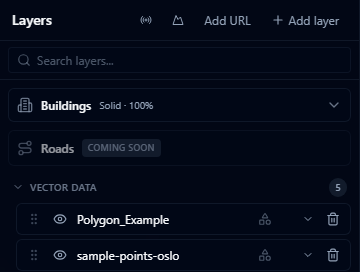
- Open the Layers panel and click +.
- Select Import file.
- Choose your
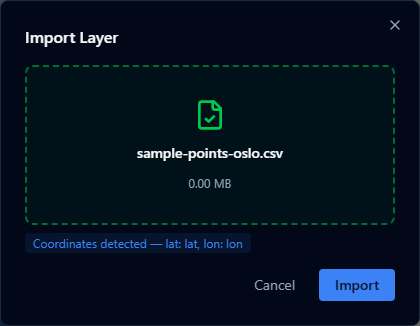
.csvfile. - A preview appears showing which columns were detected as coordinates or address. Confirm the detection looks correct.
- Click Import.
The file is converted to GeoJSON and added as a new point layer. The original .csv is not stored — only the converted layer data.
Column preview
After you select a file, AugmentCity scans the first 20 rows and shows a confirmation:
- Coordinates detected — shows the exact column names it will use for latitude and longitude.
- Address column detected — shows the column it will use for geocoding.
- No location columns found — the import will fail unless you rename your columns to match the supported names above.
Time-series point data
If your CSV has a time/date column and multiple rows per entity — for example, repeated readings from the same sensor or station — AugmentCity can detect it as a temporal series and play it back over the timeline instead of showing every row at once. Numeric-looking text values (like "42.3") still animate smoothly. See Temporal Series.
Limitations
- Only point features are supported. CSV cannot represent lines or polygons.
- Coordinates must be in WGS 84 (decimal degrees). Projected systems are not reprojected automatically.
- Very large files (approaching the 200 MB file size limit) may be slow to geocode if address-based.
- Rows with missing or non-numeric coordinate values are skipped without warning.