GeoTIFF (Raster & Terrain)
GeoTIFF is a standard raster format that embeds geographic coordinates directly in the file. AugmentCity supports two uses for GeoTIFF files:
- Raster imagery — orthophotos, aerial surveys, satellite imagery, and any RGB/RGBA raster draped over the 3D globe
- Terrain elevation — digital elevation models (DEMs) that replace the default world terrain for the covered area
Both use the same file format (.tif / .tiff). AugmentCity detects which type you are importing based on whether the file contains image bands (RGB/RGBA) or a single elevation band.
Importing a GeoTIFF
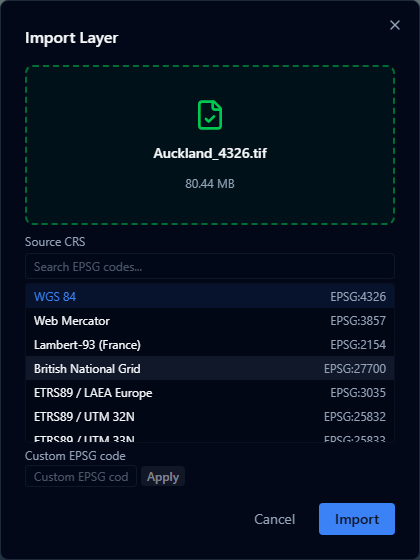
- Open the Layers panel and click + Add Layer.
- Select your
.tifor.tifffile (up to 200 MB). - AugmentCity reads the file's embedded CRS. If one is detected it is shown in the Coordinate reference system dropdown — you can leave it as-is or override it if your file's metadata is incorrect.
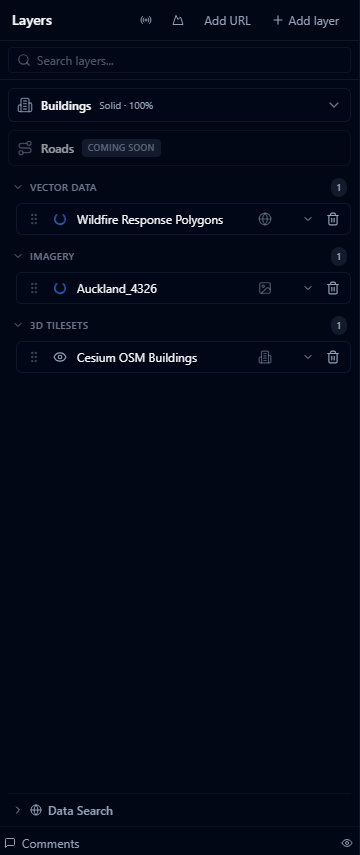
- Click Import. The layer appears in the panel once it finishes loading.
If AugmentCity cannot detect a CRS automatically, select the correct one from the CRS dropdown before importing. Common choices for New Zealand data include EPSG:2193 (NZGD2000 / New Zealand Transverse Mercator).
Raster imagery (orthophotos, aerial and satellite)
When you import a GeoTIFF with RGB or RGBA bands, AugmentCity renders it directly in the browser as a raster imagery layer draped over the 3D globe. No external tile server is needed.
How it works
- The file is parsed in the browser using the GeoTIFF format.
- If the raster is in a projected coordinate system (for example UTM or NZGD2000), AugmentCity reprojects it to WGS84 automatically.
- The image is rendered to a canvas and displayed using the geographic bounds extracted from the file.
- Canvas output is capped at 4096 px on the longest edge, so very-high-resolution files are downsampled for display.
Supported raster types
| Raster type | Bands | Notes |
|---|---|---|
| Colour imagery | RGB | Full colour display |
| Colour imagery with transparency | RGBA | Alpha channel preserved |
| Greyscale / single-band | 1 band | Displayed as a greyscale image |
Raster layer options
After importing, expand the layer row to access:
| Option | Description |
|---|---|
| Opacity | Adjust the transparency of the raster overlay (0–100%) |
| Raster values | Style single-band values as greyscale or with a color ramp |
| Zoom to | Flies the camera to the layer's geographic extent |
Raster value styling
Single-band rasters can be styled by value. This is useful for elevation derivatives, risk surfaces, land suitability scores, noise rasters, heat exposure, and other measured grids.
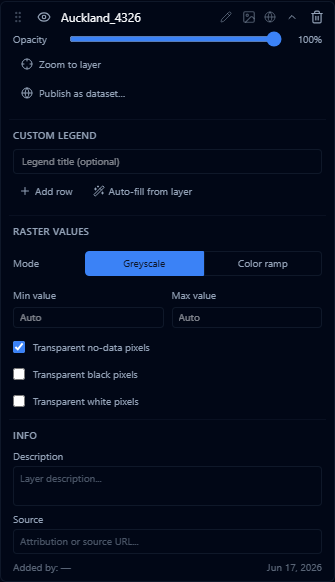
| Control | Description |
|---|---|
| Mode | Choose Greyscale for a neutral black-to-white scale, or Color ramp for a named ramp |
| Ramp | Choose the color ramp used in Color ramp mode |
| Min value / Max value | Leave as Auto to use the detected data range, or enter fixed values to compare rasters on the same scale |
| Transparent no-data pixels | Hides cells marked with the raster's no-data value. This is on by default |
| Transparent black pixels | Hides pure black pixels, useful for rasters with black background collars |
| Transparent white pixels | Hides pure white pixels, useful for rasters with white background collars |
The layer Opacity slider still controls the transparency of the whole raster overlay. The transparent pixel options only hide selected cells inside the raster.
Terrain elevation
When you import a single-band GeoTIFF containing elevation values, AugmentCity treats it as a terrain layer. The default world terrain is replaced by your model in the area the file covers. The rest of the globe continues to use the default terrain.
Supported elevation formats
- Float32 and Int16 single-band GeoTIFFs
- Outputs from photogrammetry software (drone surveys)
- Bathymetric depth models
For best results, export your elevation model as a float32 GeoTIFF with a no-data value set for areas outside your survey boundary. This produces sharp edges at the coverage boundary.
Terrain limitations
- Only one terrain layer can be active at a time. Adding a new terrain layer automatically deactivates the previous one.
- Very large elevation rasters (> 50 000 × 50 000 pixels) may time out during processing — split them into tiles before importing.
Cloud-Optimized GeoTIFF (COG)
For very large rasters (> 200 MB) that would be too slow to load client-side, you can use a Cloud-Optimized GeoTIFF hosted on a Titiler tile server. Instead of uploading the file, connect it as an external layer:
- Open the Layers panel and click External Layer.
- Choose your tile server type and enter the URL pointing to your COG file.
This approach streams only the tiles needed for the current view, making it suitable for large orthophotos or high-resolution satellite imagery.
CRS and reprojection
AugmentCity reads the CRS from the GeoTIFF's embedded GeoKeys. Projected coordinate systems (UTM zones, national grids, Lambert, etc.) are reprojected to WGS84 (EPSG:4326) automatically before display.
Supported CRS options include:
- EPSG:4326 — WGS84 geographic
- EPSG:3857 — Web Mercator
- EPSG:2193 — NZGD2000 / New Zealand Transverse Mercator
- UTM zones and other common national grids
If the file does not contain CRS metadata, the CRS selector defaults to WGS84. Select the correct CRS manually before importing to ensure the layer is positioned correctly on the globe.
Size and performance
| File size | Recommended approach |
|---|---|
| Up to ~50 MB | Upload directly — client-side rendering works well |
| 50–200 MB | Upload directly — may take several seconds to render |
| > 200 MB | Use an external Titiler endpoint with a Cloud-Optimized GeoTIFF |
Client-side rendering loads the entire GeoTIFF into browser memory. On devices with limited RAM, very large files may cause the tab to slow down or run out of memory. For production workflows with large rasters, use a tile server.
Limitations
- Canvas rendering is capped at 4096 px on the longest edge — files exceeding this are downsampled for display
- Multi-spectral rasters with more than 4 bands are not supported; only the first three bands (R, G, B) are used
- Files larger than 200 MB cannot be uploaded directly; use an external COG tile server instead
- Raster layers are displayed as flat imagery draped over the terrain surface — they do not affect the terrain elevation unless imported as a terrain layer