WMS (Web Map Service)
WMS is an OGC standard for serving georeferenced map images over the web. Connect a WMS to overlay imagery — satellite photos, cadastral maps, planning zones, geological maps — from any compatible server.
Connecting a WMS
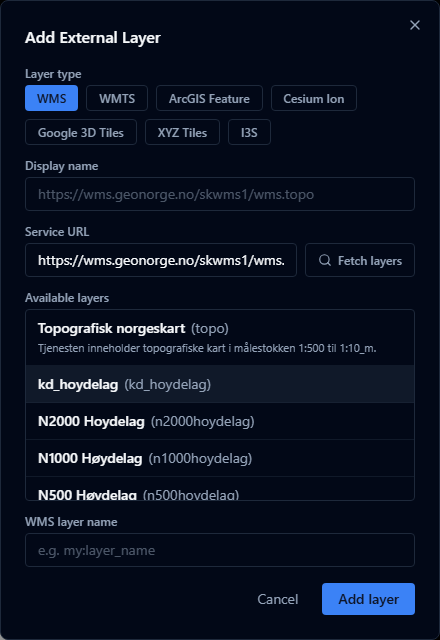
- Open the Layers panel and click Add URL.
- Choose WMS as the layer type.
- Enter the service URL (the base URL of the WMS, without query parameters).
- Click Fetch layers — AugmentCity queries the server's
GetCapabilitiesresponse and lists the available layers. - Select the layer you want.
- Click Add layer.
If the server does not support GetCapabilities or returns an error, you can enter the layer name manually.
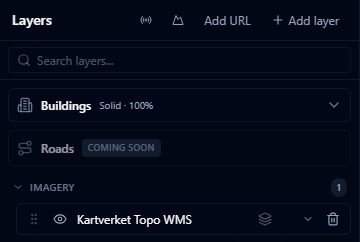
What is fetched automatically
When you use Fetch layers, AugmentCity reads:
- The list of available layer names and titles
- The supported CRS (coordinate reference system) — used to pick the best tiling scheme
- The maximum scale denominator — used to set an appropriate zoom limit
- The supported image formats — picks the best format automatically (prefers PNG for transparency)
URL format
The URL should point to the WMS endpoint, for example:
https://example.com/geoserver/wms
https://maps.example.gov/ows
Do not include SERVICE=WMS or REQUEST=GetCapabilities parameters — AugmentCity appends those automatically.
Authentication
WMS layers that require authentication are not currently supported. The service must be publicly accessible or on the same network as the user's browser.
Limitations
- WMS imagery is streamed live and is not stored in the project — it requires an active connection to the server
- If the WMS server is slow or unavailable, the layer will show blank tiles
- Very old WMS 1.1.0 servers may have compatibility issues; WMS 1.3.0 is preferred