Bookmarks
Bookmarks let you save named viewpoints in your project and return to them instantly. Each bookmark captures the exact camera position, the active scenario, and the current date on the timeline — so you can jump back to any saved perspective with a single click.
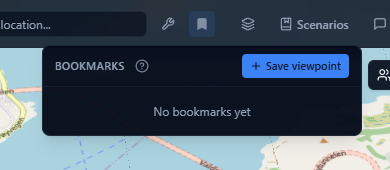
Saving a bookmark
- Navigate the 3D globe to the position you want to save.
- Click the Bookmarks button (bookmark icon) in the centre of the toolbar.
- Click Save viewpoint in the popover header.
- Type a name for the viewpoint in the text field that appears.
- Press Enter or click Save to confirm.
The bookmark is added to the top of the list immediately. A thumbnail of the current view is captured automatically in the background.
Press Esc while the name field is active to cancel without saving.
Returning to a bookmark
Click any bookmark in the list to fly the camera smoothly to the saved position. If the bookmark was created with a specific scenario active, the platform switches to that scenario. If it has a saved timeline date, the clock is also restored.
The popover stays open after teleporting, so you can move between multiple saved viewpoints quickly.
Sharing a bookmark
Each bookmark has a unique share link you can send to colleagues.
- Open the Bookmarks popover.
- On any bookmark, click the three-dot menu (...).
- Select Copy share link.
The link is copied to your clipboard. A tick icon briefly confirms the copy. Anyone with the link and access to the project can open the bookmark directly in the viewer.
Deleting a bookmark
- Open the Bookmarks popover.
- Click the three-dot menu (...) on the bookmark you want to remove.
- Select Delete bookmark and confirm the prompt.
The bookmark is removed immediately from the list.
What a bookmark captures
| Field | Saved? |
|---|---|
| Camera position (longitude, latitude, height) | Yes |
| Camera angle (heading, pitch, roll) | Yes |
| Active scenario | Yes |
| Timeline date | Yes (if a date is set) |
| Layer visibility or style | No — those are part of scenarios |
Bookmarks are stored per project and are visible to all project members. Any member can create or delete bookmarks regardless of their role.