Presentation Mode
Presentation mode is a distraction-free, fullscreen view for presenting planning scenarios to stakeholders. It hides all panels and shows a minimal bottom bar for navigating between scenarios.
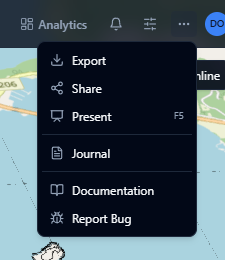
Starting a presentation
- Click the Present button in the toolbar overflow menu (three dots icon), or press F5.
- All open panels are saved and closed automatically.
- If no scenario is currently active, the first scenario is selected automatically.
Navigating scenarios
- Use the left and right arrow buttons in the bottom bar to move between scenarios.
- You can also press the left and right arrow keys on your keyboard.
- Each scenario loads its saved layers, layer visibility, and camera position.
Fullscreen
Press F11 to toggle browser fullscreen for a truly immersive experience.
Exiting
- Press Escape to exit presentation mode.
- All panels that were open before you started are automatically restored.
Collaboration
If collaboration mode is active, scenario switches you make in presentation mode are broadcast to followers. See Presenter & Follower for details.
tip
Presentation mode works best when you have 2 or more scenarios, each with different layer visibility and camera positions set up in advance.