Settings
The Settings modal lets you control how the 3D viewer looks and behaves. Adjust graphics quality, visual effects, coordinate display, and camera navigation — all in one place.
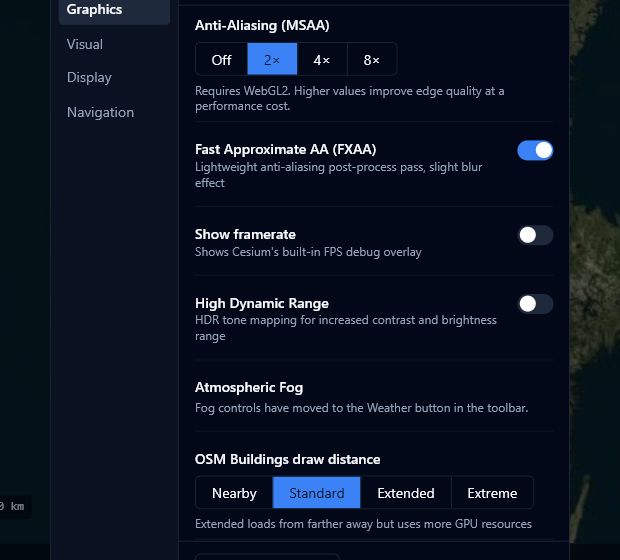
Opening Settings
Click the sliders icon in the top-right toolbar. The Settings modal opens with a sidebar containing four tabs: Graphics, Visual Effects, Display, and Navigation.
Graphics
The Graphics tab controls rendering quality. Higher quality settings look better but require more from your GPU and memory.
| Setting | Options | Description |
|---|---|---|
| MSAA (Anti-aliasing) | Off / 2x / 4x / 8x | Smooths jagged edges on 3D objects. Higher values produce cleaner edges but use more GPU. |
| FXAA | On / Off | A faster, lighter alternative to MSAA. Useful on lower-end hardware when MSAA is off. |
| HDR | On / Off | High dynamic range rendering. Required for the Bloom effect in Visual Effects. |
| OSM Buildings draw distance | Nearby / Standard / Extended / Extreme | How far away OpenStreetMap 3D buildings are loaded. Extended loads more of the city but uses more memory. Extreme loads the maximum detail and may impact performance on lower-end hardware. |
| Shadow range | 1 km / 5 km / 15 km / 30 km | How far cast shadows reach. Larger ranges cover more area but may reduce shadow sharpness. |
If the viewer feels slow, try setting MSAA to Off and OSM Buildings draw distance to Nearby. These two settings have the biggest impact on performance.
Visual Effects
The Visual Effects tab lets you fine-tune the appearance of the scene. A Reset all button at the bottom of the tab restores every setting on this tab to its default value.
Colour correction
These sliders adjust the overall look of the scene without affecting your data.
| Setting | Range | Description |
|---|---|---|
| Brightness | 0.5 – 2.0 | Make the scene lighter or darker overall. |
| Contrast | 0.5 – 2.0 | Increase the difference between light and dark areas, or flatten it. |
| Saturation | 0.0 – 2.0 | Boost or reduce colour intensity. Set to 0.0 for a greyscale view. |
| Gamma | 0.5 – 3.0 | Adjust mid-tone brightness independently of highlights and shadows. |
Lighting
The Light Intensity slider (range 0.0 – 5.0) controls the combined brightness of sunlight and image-based lighting (IBL). Increase it to brighten shadowed areas; decrease it for a more dramatic look.
Lighting must be enabled in the viewer toolbar for this slider to have a visible effect.
Ambient Occlusion (SSAO)
Ambient occlusion adds subtle shadows in corners, gaps, and crevices. This makes 3D buildings and terrain feel more grounded and easier to read.
- Enable / disable — toggle ambient occlusion on or off.
- Intensity (1.0 – 10.0) — how dark the shadow areas appear. Higher values produce more pronounced shadows.
- Bias (0.0 – 1.0) — fine-tunes which surfaces receive shadows. Increase if you see unwanted shadows on flat areas.
Bloom
Bloom adds a soft glow around very bright parts of the scene, such as reflective surfaces or bright light sources.
- Enable / disable — toggle bloom on or off.
- Intensity (0.0 – 1.0) — how strong the glow is.
- Threshold (0.1 – 1.0) — how bright an area must be before it glows. Lower values cause more of the scene to glow; higher values restrict the effect to only the brightest spots.
Bloom requires HDR to be enabled in the Graphics tab. If Bloom is enabled but HDR is off, the glow effect will not appear.
Display
The Display tab controls how coordinates and measurements are shown in the viewer.
| Setting | Options | Description |
|---|---|---|
| Coordinate format | DD / DMS | DD shows decimal degrees (e.g. 51.5074). DMS shows degrees, minutes, and seconds (e.g. 51° 30′ 27″). |
| Altitude unit | m / ft | Show altitude in metres or feet in the coordinate readout. |
| Show mouse coordinates | On / Off | Show or hide the coordinate and altitude readout at the bottom-left of the viewer. |
If you share screenshots with colleagues who use DMS coordinates, switch to DMS before taking the screenshot so the readout matches their expectation.
Navigation
The Navigation tab controls how the camera moves.
| Setting | Description |
|---|---|
| Camera inertia | When enabled, the camera continues to drift slightly after you release a pan or rotate gesture, like a globe with momentum. Disable this if you prefer precise, immediate stops. |
| Zoom speed | How fast the camera zooms in and out. Drag the slider from 1 (slowest) to 10 (fastest). |
Keyboard shortcuts
| Action | Input |
|---|---|
| Zoom in / out | Scroll wheel |
| Pan | Left-click drag |
| Tilt / orbit | Right-click drag |
| Fly forward / back / left / right | W A S D |
| Fly up / down | Q E |
| Reset north | N |
| Focus selected | F |
| Toggle 2D / 3D | Toolbar button |
Keyboard shortcuts are fixed and cannot be customised.