Environment Simulation
AugmentCity includes real-time weather, wind, ocean, and lighting simulations to help you visualise how projects look under different environmental conditions.
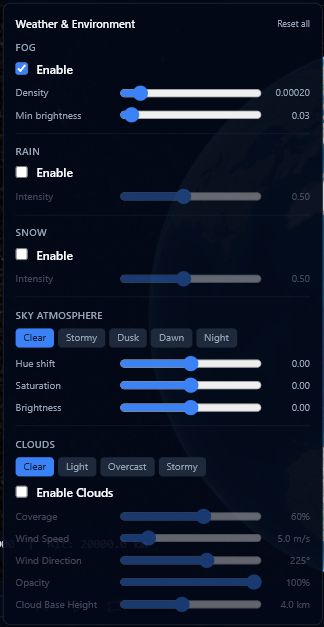
Weather
Access the weather controls by clicking the cloud/rain icon in the centre toolbar.
Fog
- Enable or disable fog with the toggle.
- Density — slider from 0 to 0.002. Higher values produce thicker fog.
- Brightness — slider from 0 to 1. Controls how light-coloured the fog appears.
Rain
- Enable or disable rain with the toggle.
- Intensity — slider from 0.1 to 1.
Snow
- Enable or disable snow with the toggle.
- Intensity — slider from 0.1 to 1.
Sky Atmosphere
Choose from five presets — Clear, Stormy, Dusk, Dawn, or Night — then fine-tune using three sliders:
| Slider | Range | Effect |
|---|---|---|
| Hue | −1 to +1 | Shifts the overall sky colour tint |
| Saturation | −1 to +1 | Increases or reduces colour vividness |
| Brightness | −1 to +1 | Lightens or darkens the sky |
Clouds
| Control | Range / Options | Description |
|---|---|---|
| Preset | Clear / Light / Overcast / Stormy | Quick starting point for cloud coverage |
| Coverage | 0–100% | How much of the sky is covered |
| Wind speed | 0–30 m/s | How fast clouds drift across the scene |
| Wind direction | 0–360° | Direction clouds travel |
| Opacity | slider | Overall transparency of the cloud layer |
| Cloud type | Cumulus / Stratus / Cirrus | Shape and altitude of cloud formation |
| Render quality | Low / Medium / High | Trade visual detail for performance |
Combine rain with a Stormy sky preset for realistic storm simulations when presenting flood risk scenarios.
Wind Visualization
Access the wind controls by clicking the wind icon in the centre toolbar.
Wind visualization overlays animated particle streams on the 3D scene. The underlying data comes from an open weather API and is fetched automatically based on your current camera position.
| Control | Range / Options | Description |
|---|---|---|
| Enable | toggle | Show or hide wind particles |
| Particle density | 80–520 | Number of particles in the scene |
| Speed factor | 0.1–7 | How fast particles move relative to real wind speed |
| Opacity | 0.1–1 | Transparency of the particle lines |
| Height above terrain | 0–10,000 m | Altitude at which particles are drawn |
| Line width | 1–12 px (min/max) | Thickness of each particle line |
| Line length | 5–520 (min/max) | How long each particle trail appears |
| Drop rate | slider | How often particles reset to a new position |
| Drop rate bump | slider | Additional drop rate applied to slow-moving particles |
| Color preset | Blue-Red / White / Temperature | Colour scheme used to represent wind speed or temperature |
| Animation | toggle | Pause or resume particle movement |
| Adaptive mode | toggle | Automatically reduces density to maintain performance |
The toolbar shows a STALE badge when the cached wind data is older than 15 minutes.
When the LIVE toggle is enabled in the Timeline Bar, wind data refreshes automatically alongside any other live datasets. See Live updates.
Wind data is fetched for your current camera location. Pan to a different area and the data updates automatically.
Ocean Simulation
Access the ocean controls by clicking the waves icon in the centre toolbar.
Ocean simulation renders an animated water surface with waves, reflections, and depth-based colouring across the scene.
| Control | Range | Description |
|---|---|---|
| Enable | toggle | Show or hide the ocean surface |
| Sea level | −50 to +50 m | Raises or lowers the water surface relative to terrain |
| Shallow water colour | colour picker | Colour applied near coastlines and shallow areas |
| Deep water colour | colour picker | Colour applied in deeper areas |
| Depth falloff distance | 10–200 m | Distance over which the colour transitions from shallow to deep |
| Opacity | 0–1 | Overall transparency of the water surface |
| Wave speed | 0–0.1 | How quickly wave patterns animate |
| Wave scale | 10–200 | Size of the wave patterns |
| Normal map strength | 0–1 | Amount of surface detail and ripple texture on the waves |
| Fresnel power | 0.5–5 | Controls how sharply reflections shift with viewing angle |
| Reflection intensity | 0–1 | How strongly the sky is reflected in the water |
A Reset to defaults button restores all ocean settings to their original values.
Adjust the sea level slider to simulate different flood or sea-level-rise scenarios. Combine with terrain elevation shading to see which areas would be affected.
Image-Based Lighting (IBL)
Access the IBL controls by clicking the sparkle icon in the centre toolbar.
Image-Based Lighting controls how imported 3D models receive ambient light. It affects the realism of material reflections on models that use physically-based rendering (PBR) materials such as glTF and GLB files.
| Mode | Description |
|---|---|
| Environment Map | Uses a custom environment map for the richest, most realistic reflections |
| Procedural Sky | Uses the default Cesium atmosphere for lighting (default) |
| Direct Only | Disables ambient lighting — uses only direct sunlight |
The toolbar button highlights blue when a non-default mode is active.
IBL only affects imported 3D models with PBR materials. It has no visible effect on basemap imagery, terrain, or 2D layers.